You remember a few words
They may be part of the filename, or a sentence that appeared in the document. Search first, then judge slowly.
 AIClue
 AIClue, built around the way you look for files.
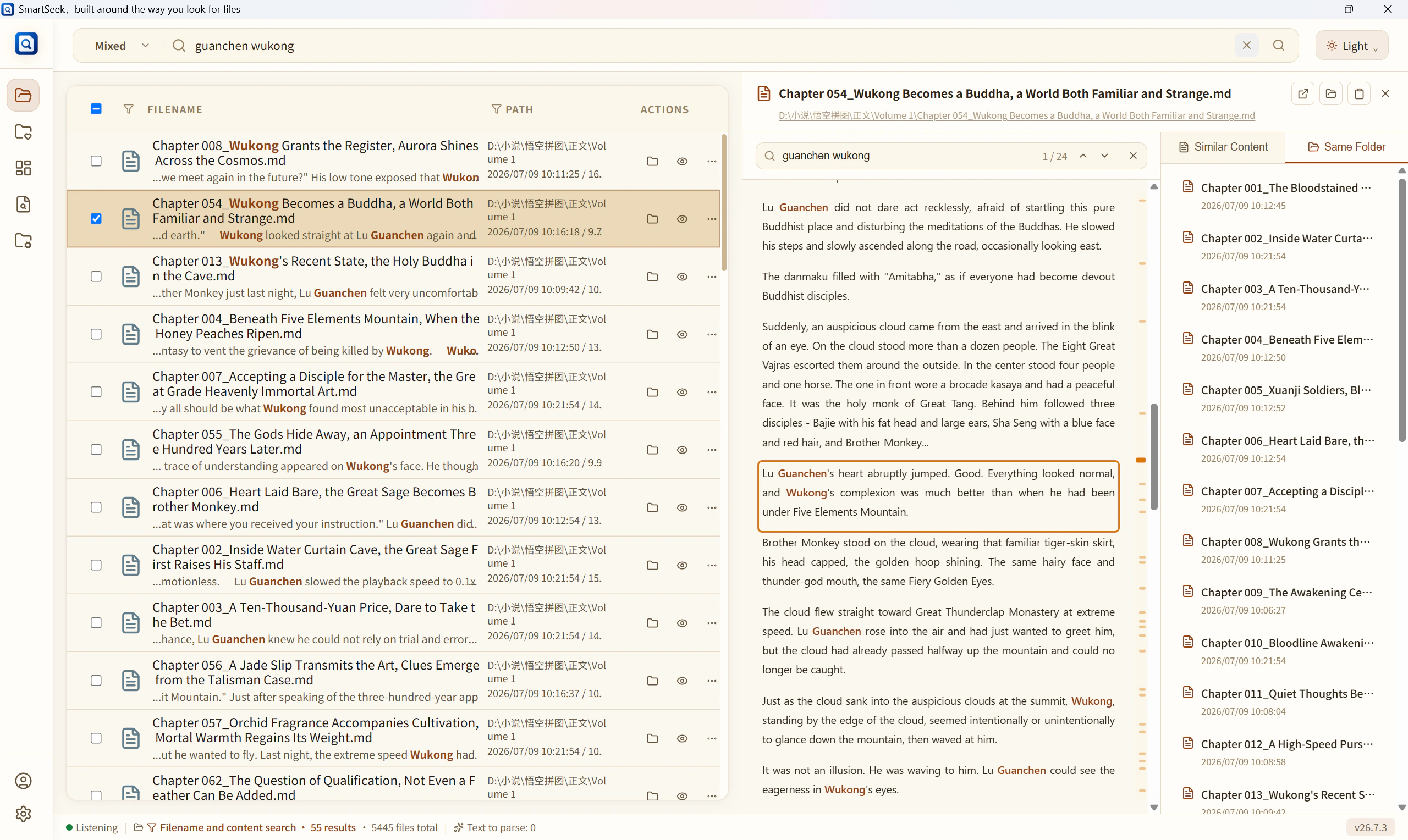
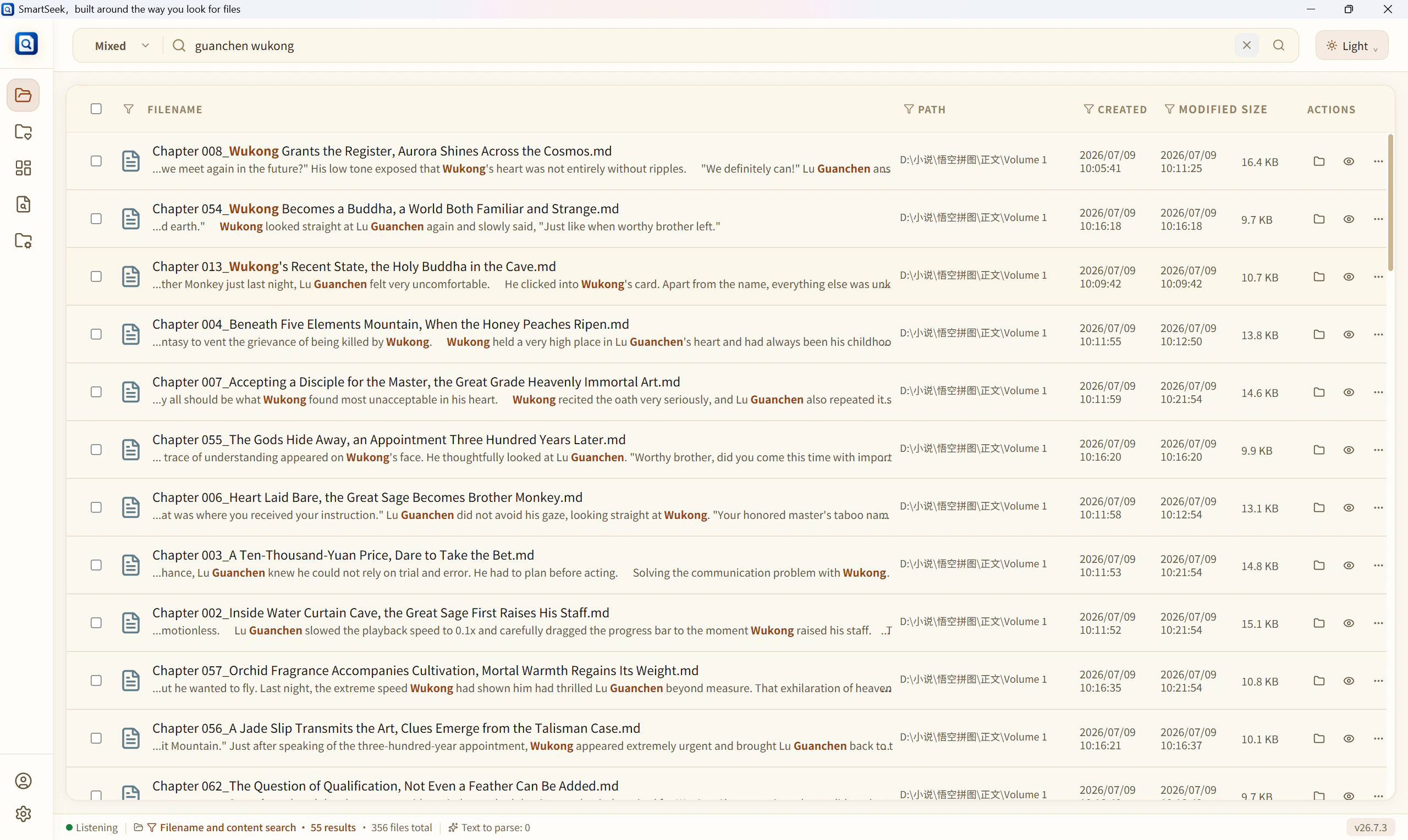
You do not need the full filename, and you do not need to open folders one by one. Type the few words you remember, and AIClue searches filenames, folder locations, and document content together. Results show highlighted matches, content snippets, and previews so you can check first, then decide what to open.
Currently published features are free forever · Basic features can be used without registration · Processed on your device by default
Finding files should not depend only on memory
Work files often spread across Desktop, Downloads, chat folders, project folders, and backups. After a while, you may only remember a few words in the title, a sentence inside the document, or a rough folder. Plain search can return a long list, but you still have to open candidates one by one.
They may be part of the filename, or a sentence that appeared in the document. Search first, then judge slowly.
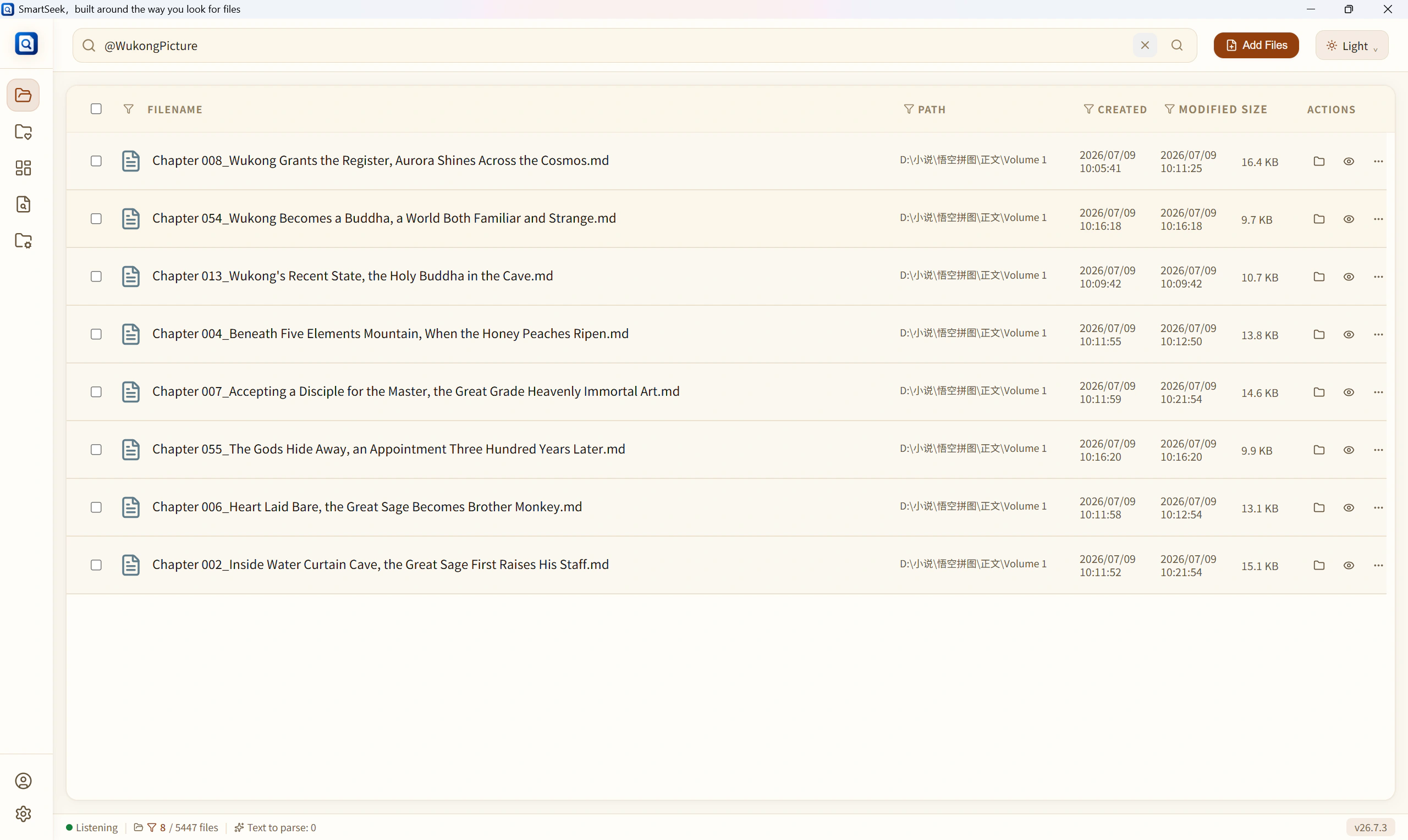
Maybe it was in client materials or under a project folder. File location appears with results to help narrow the range.
When copies, final versions, and edited versions mix together, review content snippets and previews before opening the one you need.
What makes AIClue different
AIClue feels more like a search engine for computer files. Start with the clues you remember, then narrow the target through highlights, content snippets, previews, related files, and workspaces.
Filenames, folder locations, and document content appear together, with matching places highlighted.
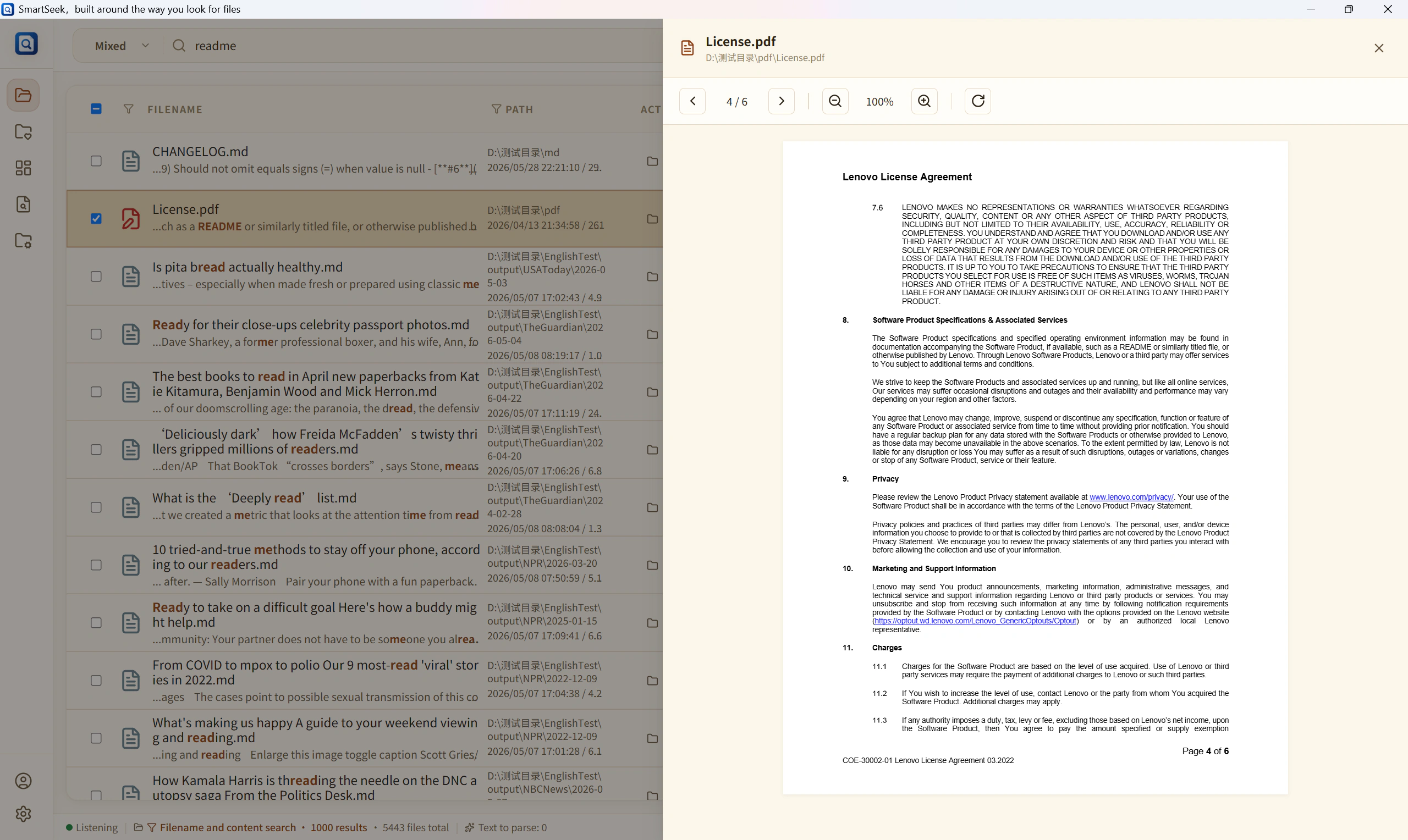
Review content snippets and previews first, then decide whether a file is worth opening.
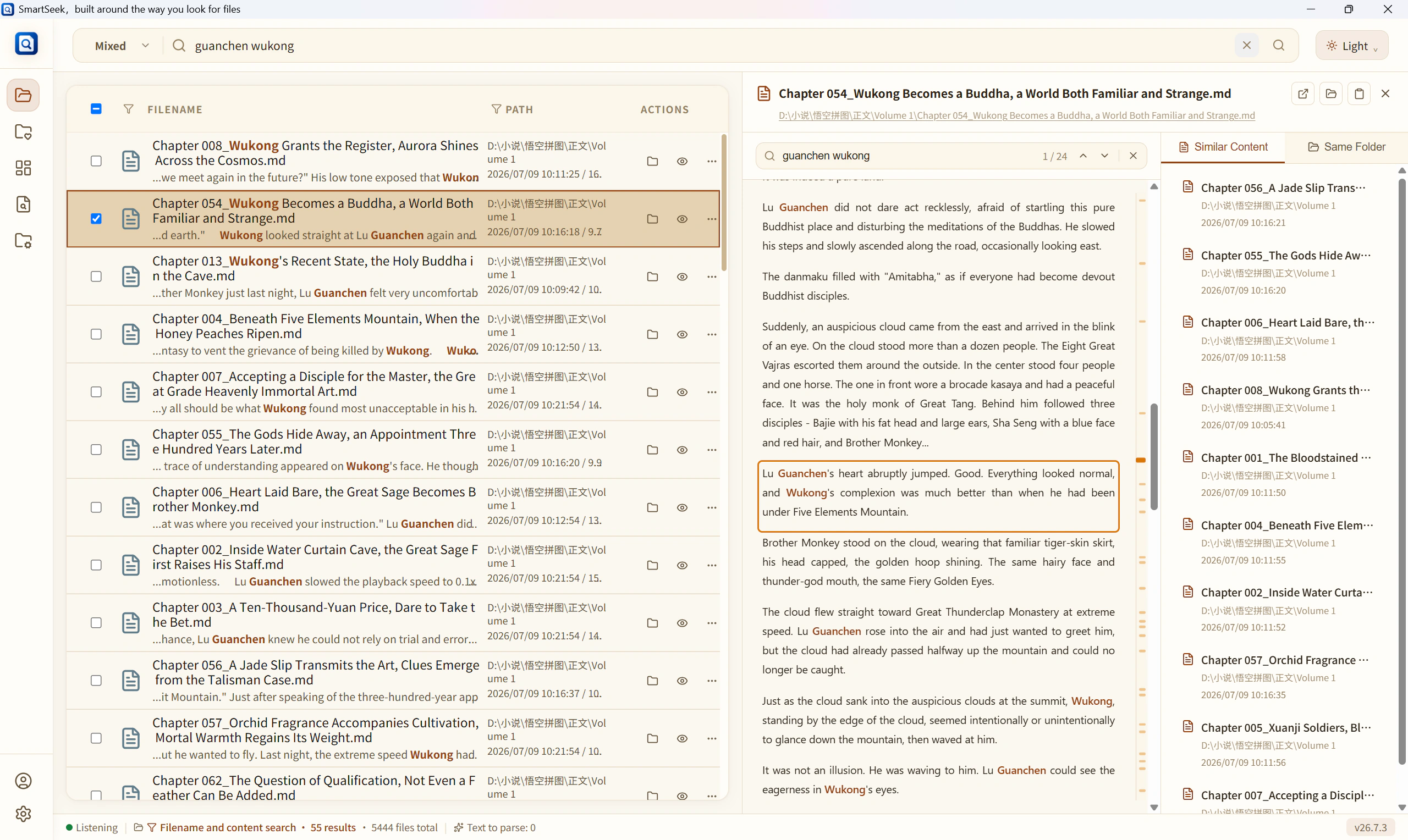
From one close result, continue through same-folder files and files with similar content.
Add files for the current task to a workspace without copying them into a new folder.
Search by what you remember
Choose a focused path for remembered document text, a forgotten filename, or a broader Windows file search workflow.
A real file-finding flow
Often, you are not completely lost. You just remember a little. AIClue keeps those clues in one result flow so you can investigate as you read.
Type a few words from the filename, a sentence that appeared in the document, or start from a folder range.
Results show filenames, folder locations, times, and content snippets. Highlighted matches help you judge relevance faster.
If you are unsure, preview the content first. Common files such as PDF, Word, spreadsheets, PPT, Markdown, code/text, images, audio, web video, and archive lists have corresponding viewing paths; unsupported files can still open with the system default app.
If one result looks close but is not final, continue through same-folder files or files with similar content to bring scattered material back together.
After finding, keep working
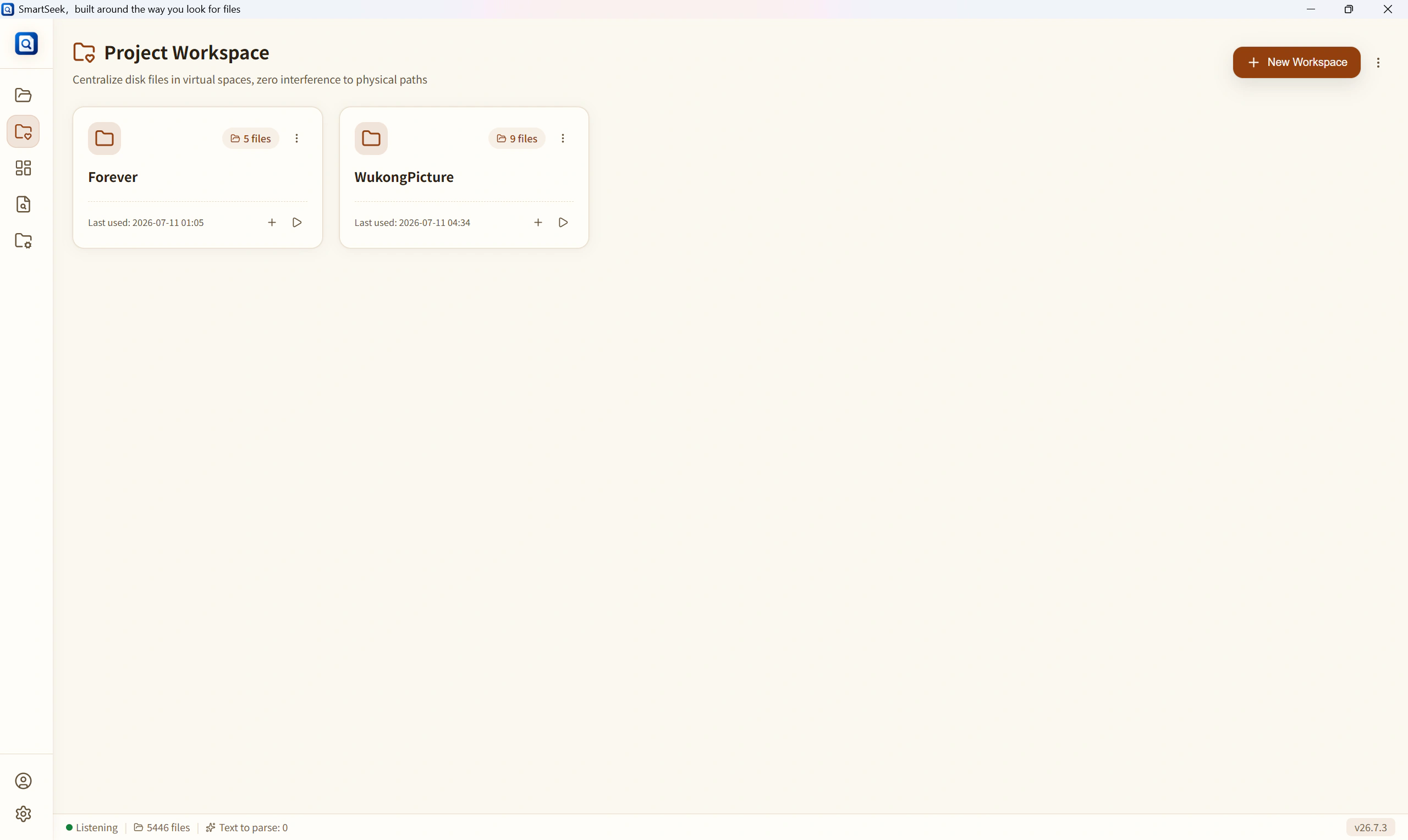
When collecting files for a task, useful material may come from many places. Copying everything into one work folder often creates more duplicates. AIClue can add those files to a workspace for focused viewing and opening, while originals stay where they are.
When a useful file appears in search, add it directly to a workspace and gradually collect material for the task.
The workspace only gathers files for viewing. It does not require copying, moving, or renaming them, which helps reduce later duplicate buildup.
When the project ends, the workspace can be dissolved. If you need it again later, restore it from history.
Organize while you work
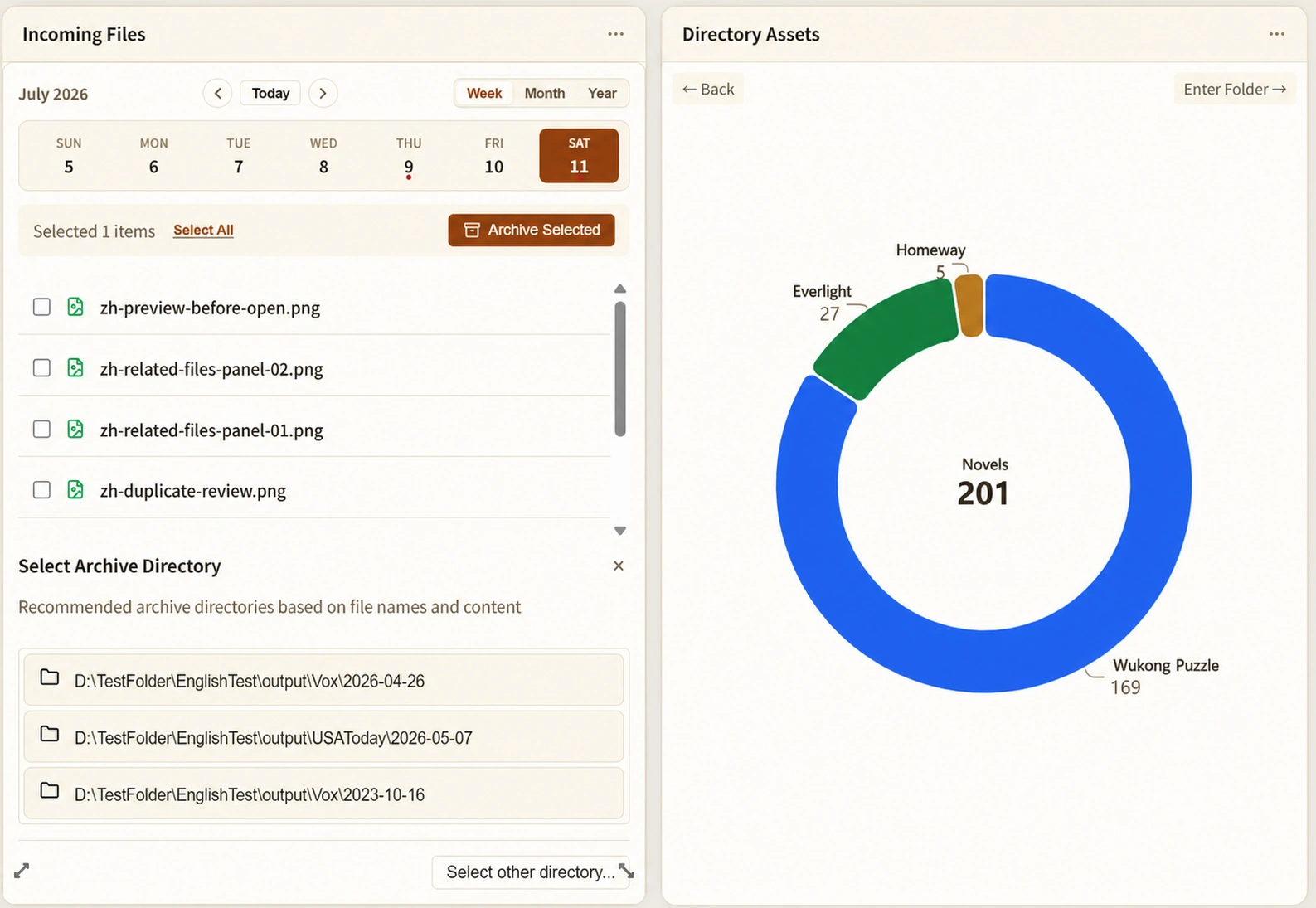
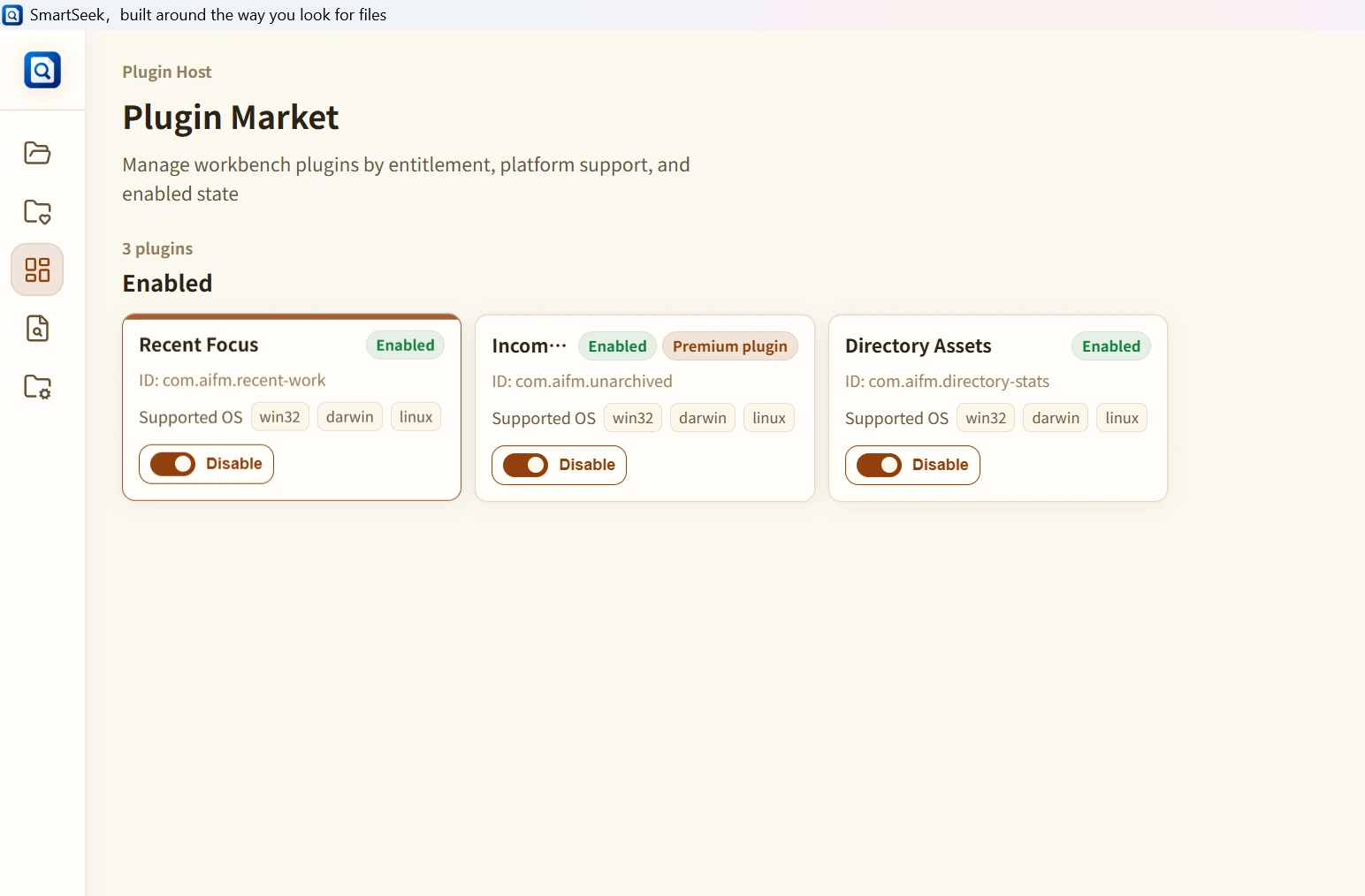
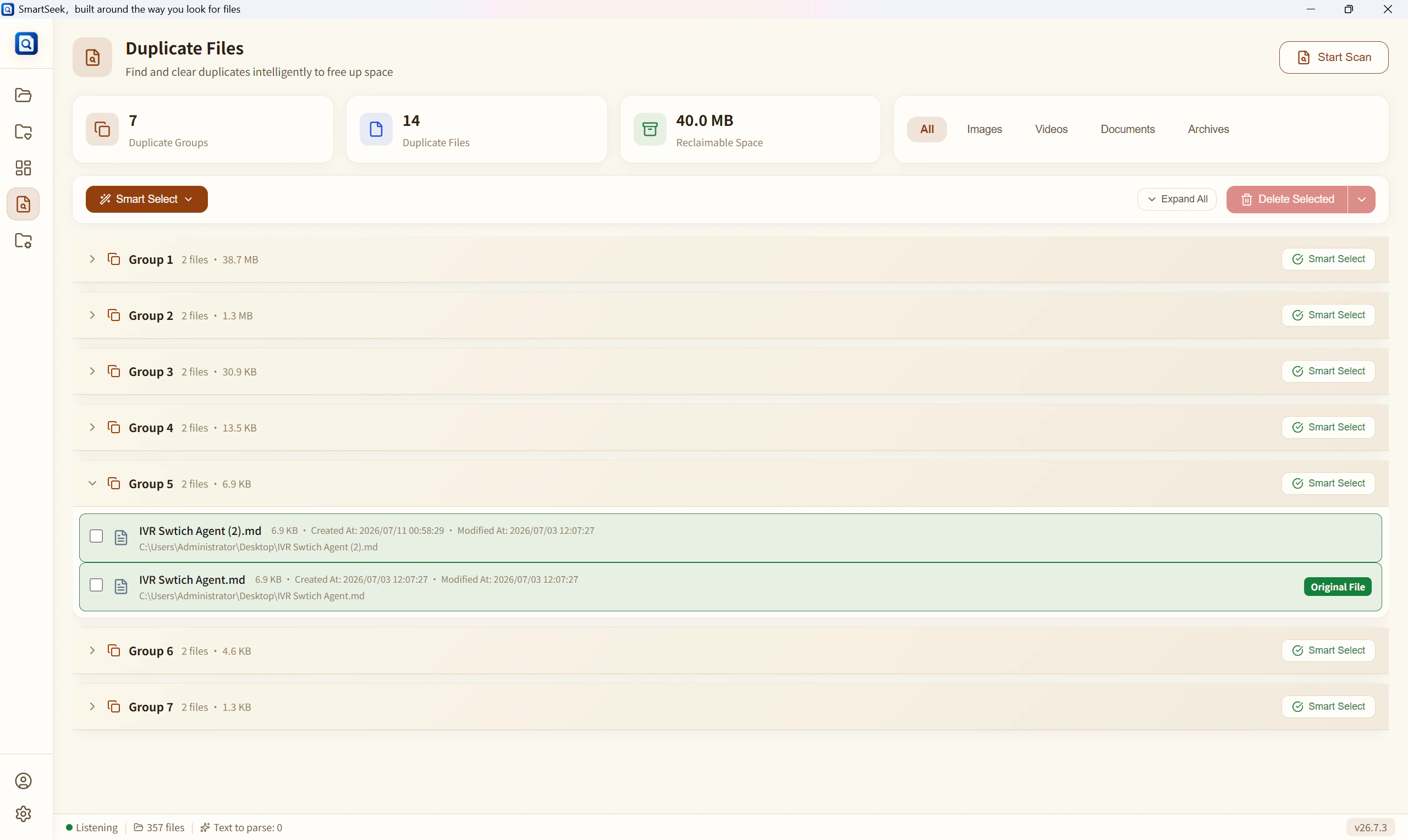
Incoming files and duplicate files are supporting tools for after search. Bring them together, review them clearly, then move, archive, or clean up after confirmation.
Bring high-churn folders together, review by time, then move or archive after confirmation.
Show duplicate files in groups, review them first, then handle extra copies.
Your files stay yours
AIClue is designed for local file search and organizing. It only works with folders you add, and actions such as moving, deleting, or cleaning up duplicates require your confirmation.
AIClue, built around the way you look for files.
Download AIClue, add a document folder you use often, and type the few words you still remember to see whether it can bring the file back.